
How We Brought Root Apps to Mobile

Root apps launched on desktop earlier this year. They're custom experiences that run natively inside Root, alongside channels and voice calls.

Since they shipped on Root desktop, we knew bringing them to mobile was the next thing to figure out. As lead mobile engineer, that landed on me. How do you make apps feel great on your mobile device? And what does it actually take to get there?

Staging apps for mobile devices

Root apps don't just appear on your phone, as much as we'd like them to. An app bundle needs to be downloaded and unpacked before a user can run it, and in a community with many app channels, that can be a lot to manage. (If you've shipped anything involving on-device archive extraction, you know exactly what I mean.)

The solution was a custom bundle manager that handles all of this in the background. When a community adds a new app, we stage the bundle on your device before anyone opens it. Downloads and unpacking run parallel to everything else, so your touches and interactions are never waiting on them. And if a bundle is already on your device, we're not downloading it again.

When a Root app updates in your community, we handle that the same way. The new bundle is staged in the background before you open it. By the time you tap on a Root app in your community, it's already there.

Designing for a small screen

The next problem was space. Phones are small, and I wanted developers to have enough room to build something genuinely immersive while users still needed navigation, context switching, and a way back to Root.

After a few design iterations, we developed an interactive app window and bottom bar. The window gives developers as much real estate as possible while keeping Root's context and controls accessible.
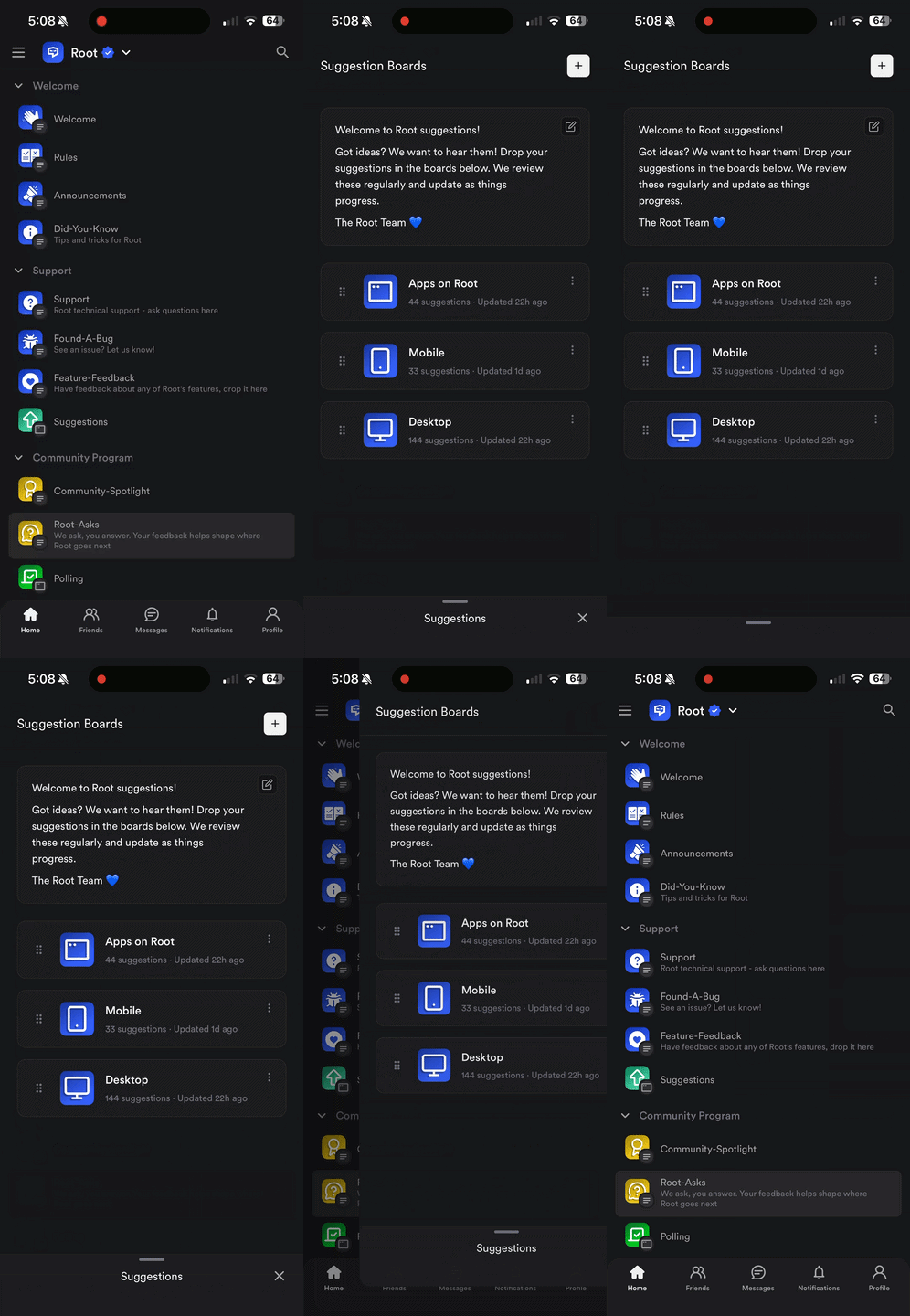
Bottom bar demo

The app space is entirely the developer's. They own the touch layer and the full visual experience, from the top of the screen down (minus the safe area, for now).

The bottom bar handles back navigation and context switching within Root and can collapse to give the app even more room.

Details that make it feel native

At that point we had Root apps running in our test environments, and we felt good about where things were. Then we started actually using them ourselves and noticed a couple of things that didn't feel right.

The first thing we noticed was that back gesture support was missing. On iOS (and most Android devices) you'd naturally use a back gesture to back out of your current screen. We tried this on our apps in our app window and... nothing happened.

It's one of those things that makes an experience feel out of place on a mobile app. Other screens in Root and beyond work that way, and your muscle memory expects it.
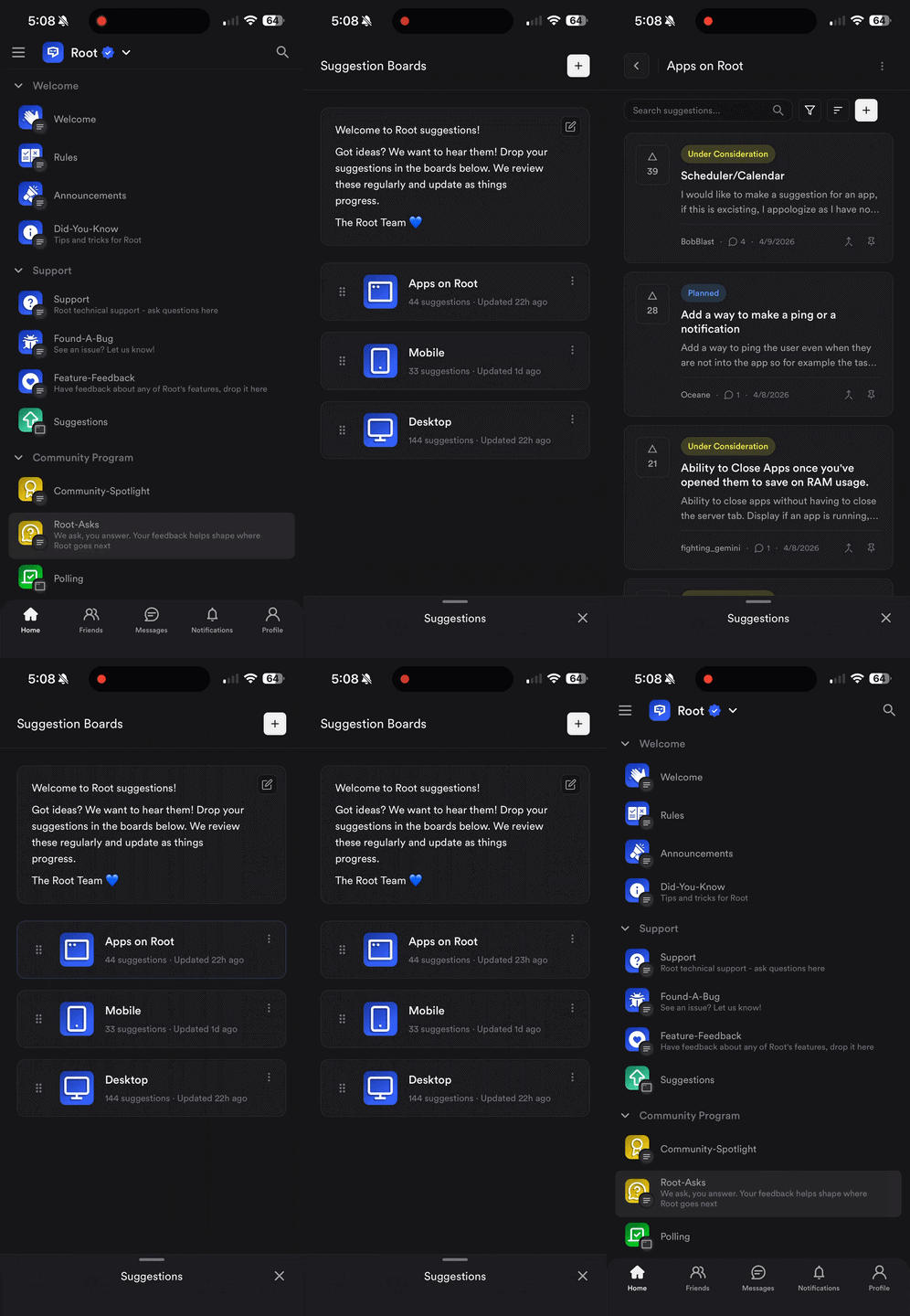
Back gesture navigation demo

With that in mind, we built first-class back gesture support into the mobile Root app experience. It takes you back to the previous screen, hooking right into native browser navigation with a tidy, platform-agnostic solution.

And because some apps manage their own navigation stacks, or may not use navigation at all, it's fully configurable at the Root app's manifest level. That decision belongs to the developer. We just made sure the capability was there.

Apps that know where they're running

The other thing we hit almost immediately was the need for platform specific customizations. Take our Root app Hexatris. On Root desktop, it runs on keyboard controls. Open it on mobile and you're staring at a game with no way to play it.
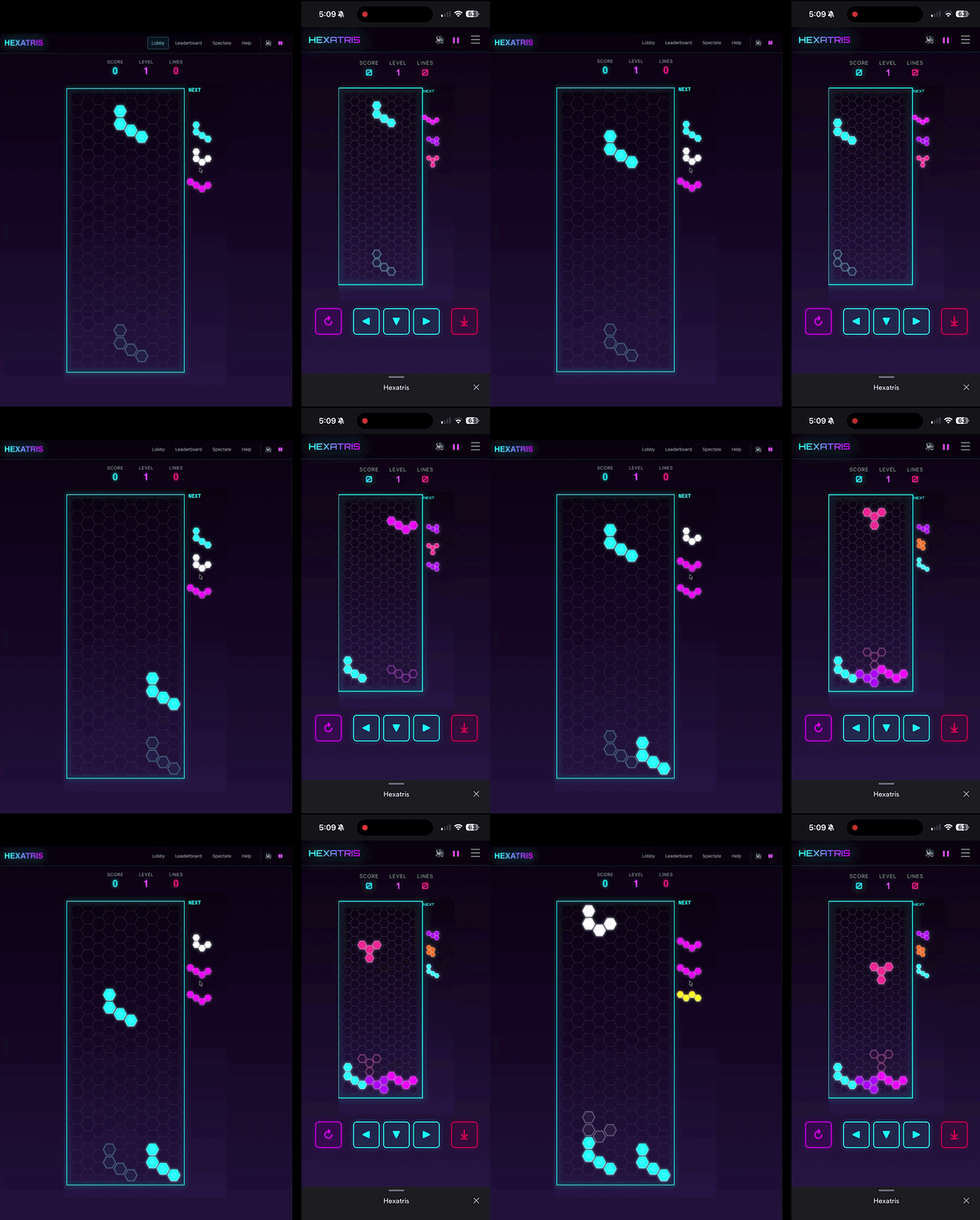
Hexatris side by side comparison. Root desktop (right) | Root mobile (left)

Touch controls were the obvious fix, and we built them. But that raised a bigger question: how does any app know what it's running on?

Checking screen size is one answer, but we can do better. Hexatris needed to know it was actually on mobile, not just that the screen happened to be small.

So we built a platform detection API into the Root app SDK. Any app can ask what environment it's in and adapt accordingly, showing the right controls, adjusting the layout, or changing what's available.

Hexatris was the first to use it, but it's already proven useful well beyond games. It's the first of several APIs we're building to help developers write smarter apps across platforms.

Live now

Apps on Root are live on mobile now, and people have already started building for it. Your community's apps are on your phone, full screen, feeling like they were made for it.

Developers reach their whole community now, not just whoever is at a desktop. I'm really excited to see what people build.

Have questions or want to talk through how any of this works? Find me on X at @spencerzataylor.

Spencer Taylor
Lead Mobile Engineer, Root

How We Brought Root Apps to Mobile

Development
Tag 1
Tag 2

Root apps launched on desktop earlier this year. They're custom experiences that run natively inside Root, alongside channels and voice calls.

Since they shipped on Root desktop, we knew bringing them to mobile was the next thing to figure out. As lead mobile engineer, that landed on me. How do you make apps feel great on your mobile device? And what does it actually take to get there?

Staging apps for mobile devices

Root apps don't just appear on your phone, as much as we'd like them to. An app bundle needs to be downloaded and unpacked before a user can run it, and in a community with many app channels, that can be a lot to manage. (If you've shipped anything involving on-device archive extraction, you know exactly what I mean.)

The solution was a custom bundle manager that handles all of this in the background. When a community adds a new app, we stage the bundle on your device before anyone opens it. Downloads and unpacking run parallel to everything else, so your touches and interactions are never waiting on them. And if a bundle is already on your device, we're not downloading it again.

When a Root app updates in your community, we handle that the same way. The new bundle is staged in the background before you open it. By the time you tap on a Root app in your community, it's already there.

Designing for a small screen

The next problem was space. Phones are small, and I wanted developers to have enough room to build something genuinely immersive while users still needed navigation, context switching, and a way back to Root.

After a few design iterations, we developed an interactive app window and bottom bar. The window gives developers as much real estate as possible while keeping Root's context and controls accessible.

Bottom bar demo

The app space is entirely the developer's. They own the touch layer and the full visual experience, from the top of the screen down (minus the safe area, for now).

The bottom bar handles back navigation and context switching within Root and can collapse to give the app even more room.

Details that make it feel native

At that point we had Root apps running in our test environments, and we felt good about where things were. Then we started actually using them ourselves and noticed a couple of things that didn't feel right.

The first thing we noticed was that back gesture support was missing. On iOS (and most Android devices) you'd naturally use a back gesture to back out of your current screen. We tried this on our apps in our app window and... nothing happened.

It's one of those things that makes an experience feel out of place on a mobile app. Other screens in Root and beyond work that way, and your muscle memory expects it.

Back gesture navigation demo

With that in mind, we built first-class back gesture support into the mobile Root app experience. It takes you back to the previous screen, hooking right into native browser navigation with a tidy, platform-agnostic solution.

And because some apps manage their own navigation stacks, or may not use navigation at all, it's fully configurable at the Root app's manifest level. That decision belongs to the developer. We just made sure the capability was there.

Apps that know where they're running

The other thing we hit almost immediately was the need for platform specific customizations. Take our Root app Hexatris. On Root desktop, it runs on keyboard controls. Open it on mobile and you're staring at a game with no way to play it.

Hexatris side by side comparison. Root desktop (right) | Root mobile (left)

Touch controls were the obvious fix, and we built them. But that raised a bigger question: how does any app know what it's running on?

Checking screen size is one answer, but we can do better. Hexatris needed to know it was actually on mobile, not just that the screen happened to be small.

So we built a platform detection API into the Root app SDK. Any app can ask what environment it's in and adapt accordingly, showing the right controls, adjusting the layout, or changing what's available.

Hexatris was the first to use it, but it's already proven useful well beyond games. It's the first of several APIs we're building to help developers write smarter apps across platforms.

Live now

Apps on Root are live on mobile now, and people have already started building for it. Your community's apps are on your phone, full screen, feeling like they were made for it.

Developers reach their whole community now, not just whoever is at a desktop. I'm really excited to see what people build.

Have questions or want to talk through how any of this works? Find me on X at @spencerzataylor.

Spencer Taylor
Lead Mobile Engineer, Root

Make money on Root!
Lorem ipsum dolor sit amet, consectetur adipiscing elit
Learn more

Spencer Taylor

What’s a Rich Text element?

The rich text element allows you to create and format headings, paragraphs, blockquotes, images, and video all in one place instead of having to add and format them individually. Just double-click and easily create content.

Static and dynamic content editing

A rich text element can be used with static or dynamic content. For static content, just drop it into any page and begin editing. For dynamic content, add a rich text field to any collection and then connect a rich text element to that field in the settings panel. Voila!

How to customize formatting for each rich text

Headings, paragraphs, blockquotes, figures, images, and figure captions can all be styled after a class is added to the rich text element using the "When inside of" nested selector system.

Jump into the best chat experience

Lorem ipsum dolor sit amet, consectetur adipiscing elit. Elit iaculis nisi, consectetur sociis blandit augue aliquam.